Step-by-step guide
How to Export DOCX to PDF in WordCraft
Learn how to export DOCX to PDF in WordCraft using a simple report you can download and edit. This walkthrough follows the browser editor’s actual File menu: open the DOCX, check the layout, save an editable copy and export a separate PDF. No account is needed for this workflow.
Try the DOCX to PDF Walkthrough
Use the original report template below for a practice run before opening an important document. The English file has one page with a summary, findings and next steps. Its bracketed fields and writing prompts are intentional: replace a short piece of text so that you can recognize your change in both saved outputs.
The preview is rendered from the downloadable file. Download the DOCX to your device, then open WordCraft and choose File > Open. The editor button does not import a file automatically. If your browser asks where to save, choose a folder you can find again. Keep the original download as a clean reference.
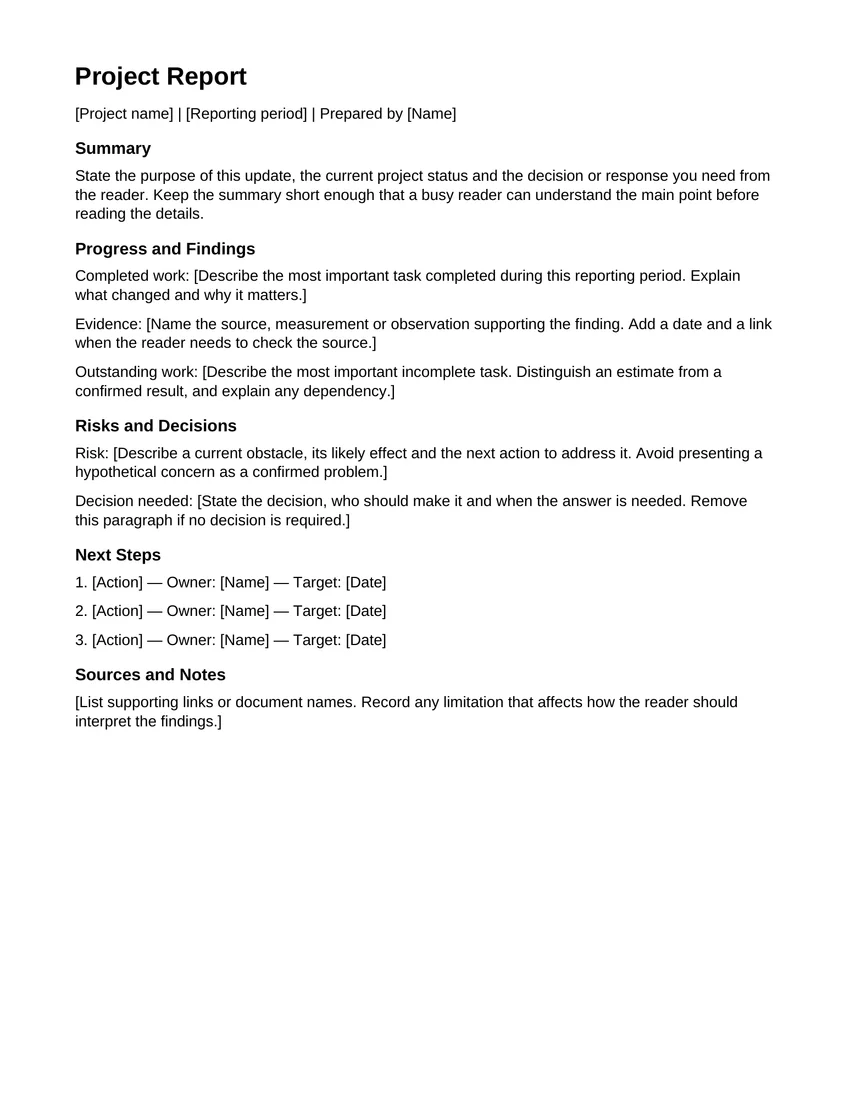
English DOCX · 1 page · US Letter · Arial 11 pt · Version 1.0
Download the file first. Then open WordCraft, choose File > Open and select the DOCX from your device. Opening the editor does not automatically load this template.
Download the sample DOCXOpen WordCraft →Open and Check Your DOCX
For your own documents, pay special attention to tables, images and unfamiliar fonts. The simple sample helps you learn the controls, but it does not prove that every imported Word file will keep exactly the same layout. If the imported file already looks wrong, return to your backup before creating a PDF.
- 1
Choose the local file
Wait for the editor ribbon and document area to load. Open File > Open, then choose the sample DOCX from your device. You should see the Project Report title and the summary, findings and next steps sections.
- 2
Make a small, recognizable edit
Replace the project name or one action item with your own practice text. Check the page from top to bottom. Look for clipped text, a heading on its own or a paragraph that has moved onto another page.
- 3
Save an editable copy
Use File > Save As to download a DOCX with your changes. Locate the file and give it a name that distinguishes it from the original. Keep this editable copy for later revisions; PDF is a separate output.
Export a PDF Copy
Open the File tab and choose Export. In the export panel, choose PDF document (*.pdf). WordCraft creates a PDF download from the current document. Wait for the browser download to finish, then locate the file rather than assuming that a button click means it was saved.
Your browser may choose a default name or ask for a destination. If you cannot find the PDF, check the browser’s downloads list and the folder you selected. Do not close or refresh the editor until you have an editable DOCX copy and can locate the exported PDF. Exporting creates another file; it does not replace the original on your device.
Check the Exported PDF
Open the downloaded PDF in a PDF viewer and review every page. Confirm the title, the practice edit and the final action item. Check text wrapping, margins and the ends of paragraphs. If you added a table or image, inspect its edges and the surrounding text as well.
Compare the PDF with the document you saw in WordCraft. Select a sentence to check that ordinary text can be selected in your output. Search for a distinctive word you added if your viewer supports search. Our simple report test checks selectable text, page count and saved content; it is not a guarantee of identical layout for complex DOCX files.
Keep an Editable Copy
Use the DOCX copy for future changes. To revise the report, reopen that DOCX, edit it and export a new PDF. This tutorial explains PDF export from a document; it does not provide PDF import, PDF editing or a server-based batch converter.
The document editor reads the file locally in your browser and saves outputs as downloads. An account does not synchronize this document or recover an unsaved draft. Keep backups of important files and follow your recipient’s requested format. WordCraft is in alpha, so review a final document in the application or viewer the recipient will use.
DOCX to PDF Questions
Do I need an account or paid plan?
No. Opening the sample, editing it, saving DOCX and exporting PDF are free browser-editor actions without registration.
Will every DOCX convert with identical formatting?
No such guarantee is made. WordCraft is in alpha. Check imported and exported pages, especially documents with complex objects, tables or fonts, and retain the original file.
Can I edit the exported PDF here?
This workflow exports a PDF from an editable document. Keep the DOCX, make revisions in that file and export another PDF. It is not a PDF editing workflow.
Why keep both DOCX and PDF?
DOCX is the editable working copy. PDF is a separate reading or sharing copy. Follow the format requested by your recipient and check the actual downloaded files before sending.
Try the export workflow with a simple document
Open WordCraft →